


 19 / 42

19
Wireless
Access
Connecting to Southeast
Wireless Network
Enter your
Southeast Key
and
Password
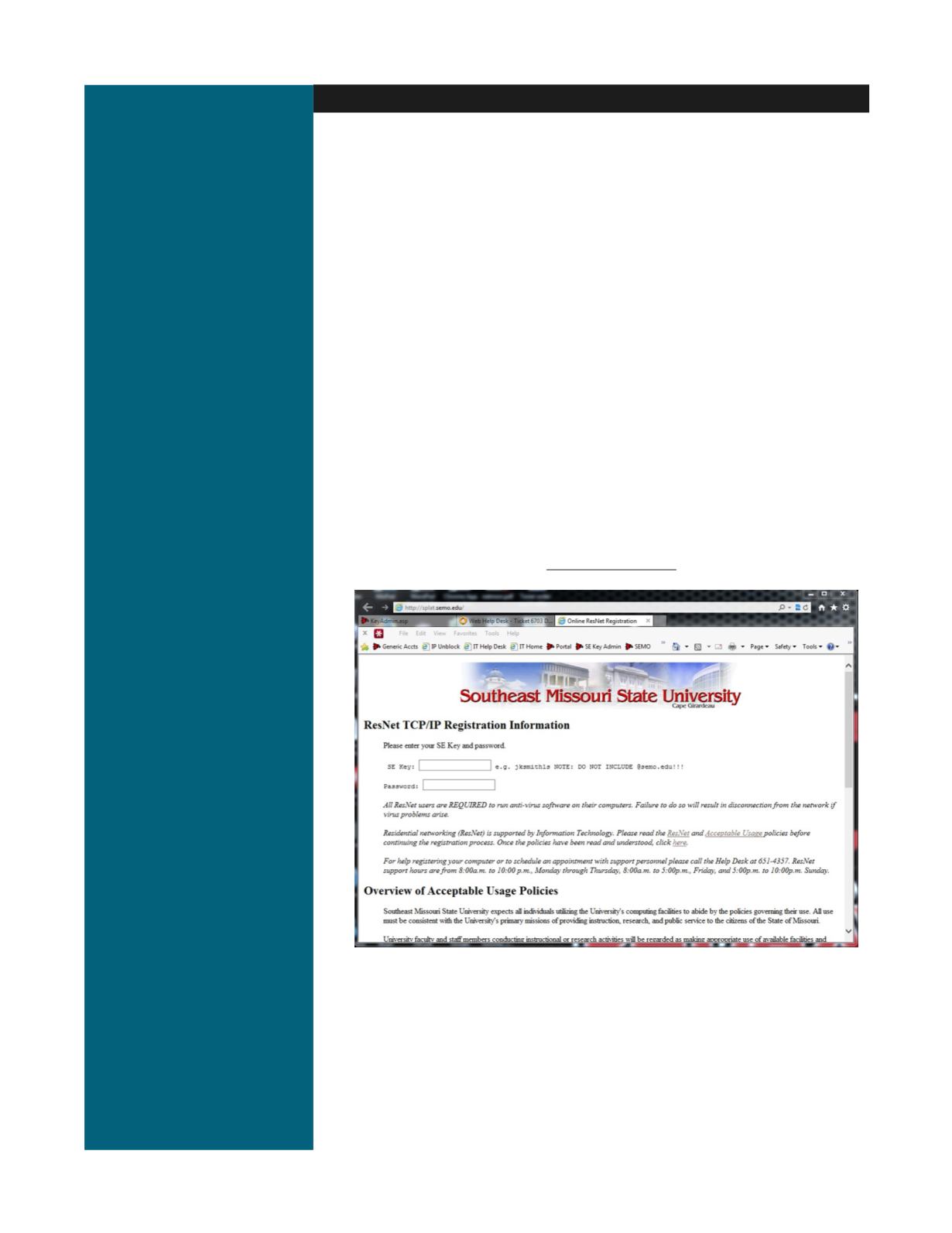
in the boxes provided, review the policies
and click the
I Accept
button at the bottom of the screen.
The next screen should say “Registration successful—reboot your computer”.
Reboot your computer as instructed. From this point forward, your computer should
automatically detect the network and connect.
Take your wireless equipped laptop to a wireless access point location on
campus.
Choose the wireless network called
Southeast Secure
(in a academic
building) or
Southeast ResNet
(in a residence hall).
Click
Connect
.
Enter your
Southeast Key
and
Password
.
Click
Connect
again
In order for your device to work on the Southeast network, it must be registered
on the network once per semester. To do this:
Open your Internet browser
Your browser may automatically go the Resnet Registration page. If it
doesn’t enter the address
http://splat.semo.edu