


 13 / 42

13
IT
Computer
Labs
Printing
Printing Steps
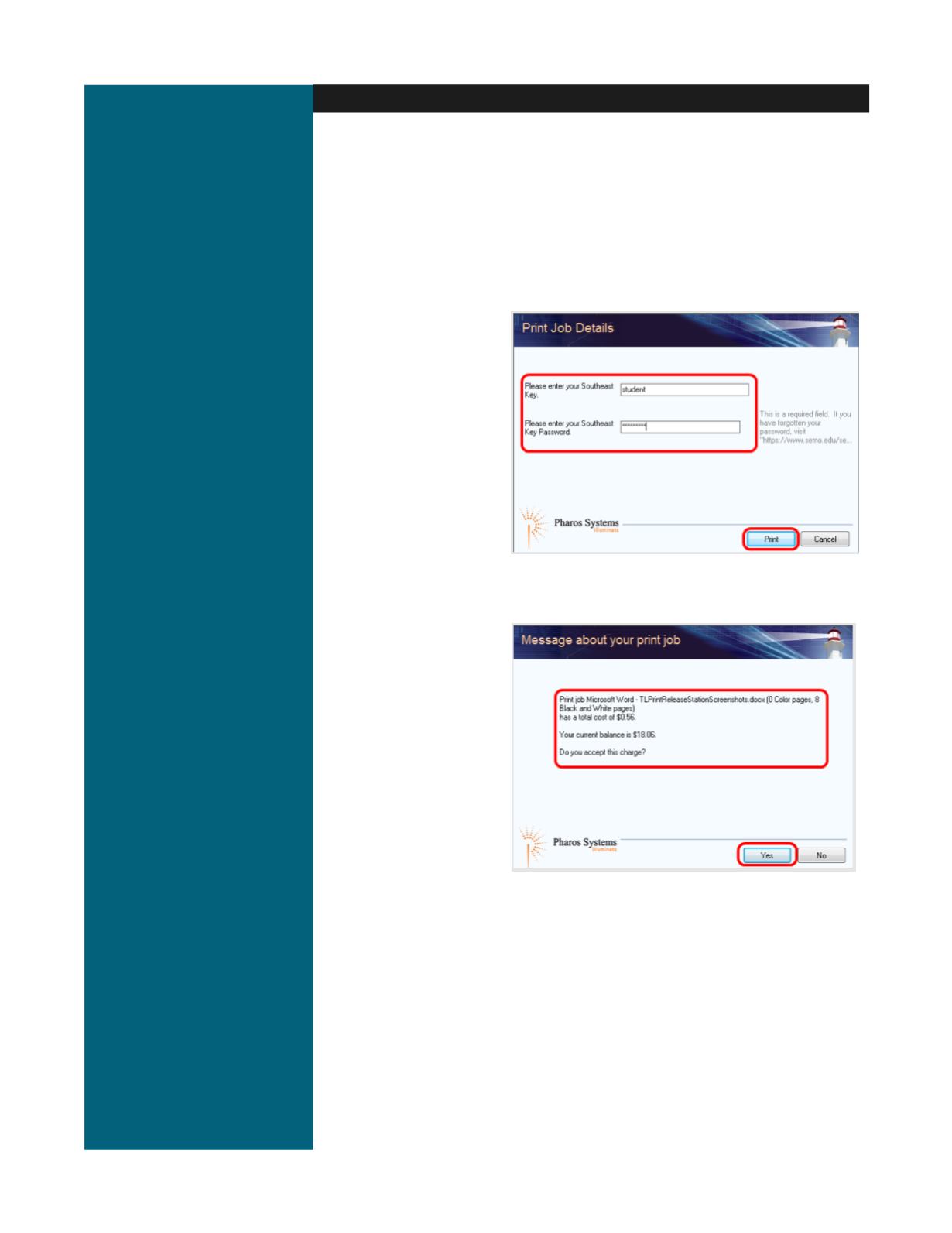
After choosing your printing options, a dialog box will appear requesting a
Southeast Key and password (you must activate your Southeast Key before it can
be used).
Steps:
1. Type in your SE Key
2. Type in your password
3. Click on
The amount that will be
deducted from your
prepaid printing balance, or added to your student account if you have reached
your prepaid limit, will be shown. The
balance
shown will represent either what
remains in your student
prepaid printing account or
the amount you will be
billed for printing. Students
will be billed at the end of
each semester for any
balance owed.
If any problems occur
while printing, please see
the computer lab
assistant immediately. The lab assistant will complete the ‘Request for
Refund’ form.